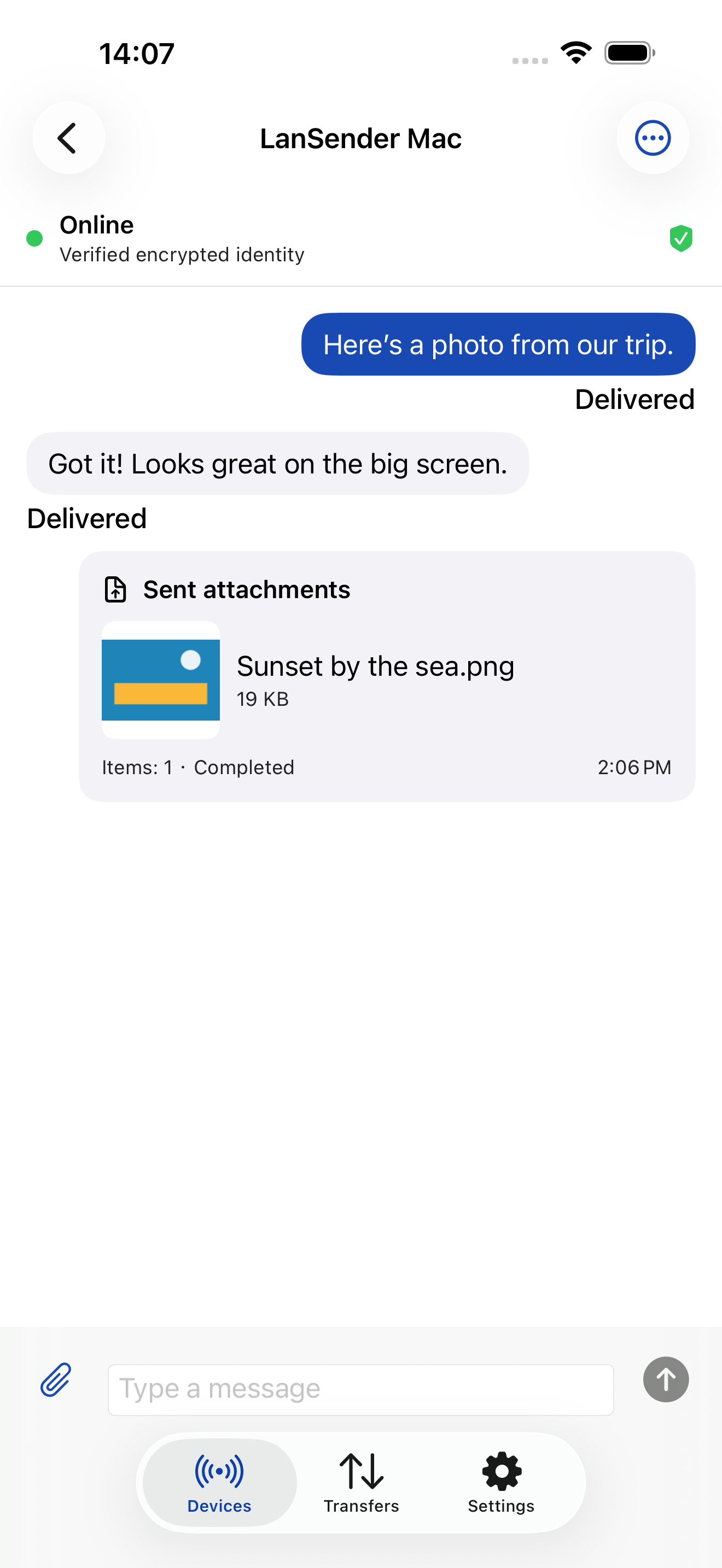
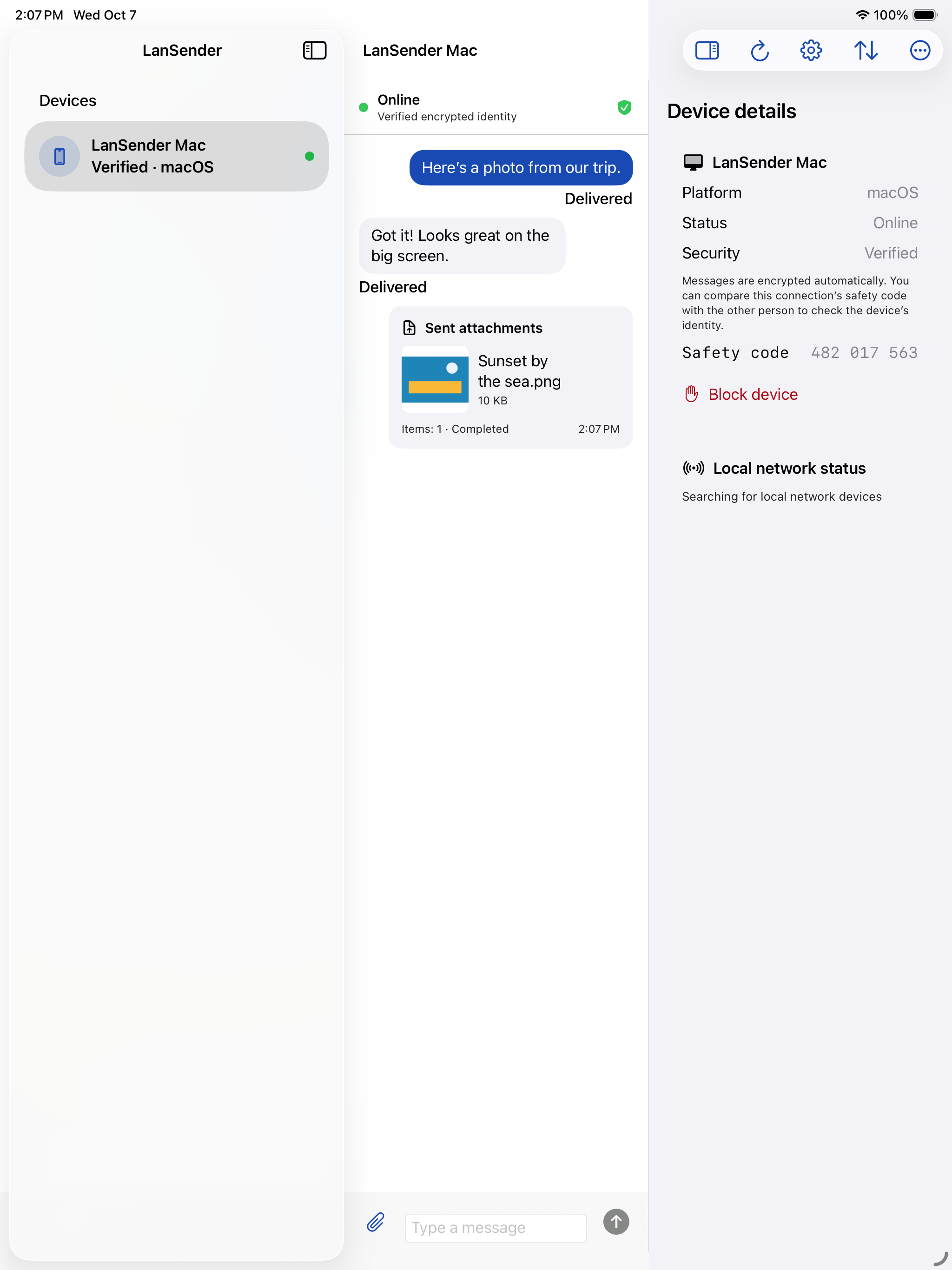
One app for two screens
The same app has layouts made for iPhone and iPad screens.
Send a photo from your iPhone or a document from your iPad to a nearby computer. Keep files and a quick conversation together, with a layout made for each screen.
iOS / iPadOS 17 or later
Not yet available
The App Store version is not yet publicly available. The download link will appear here when it launches.
One app for iPhone and iPad, with a layout designed for each screen.


The same app has layouts made for iPhone and iPad screens.
Choose a compatible LanSender device on your local network to exchange messages and selected files.
Accept an incoming file request, check the completed result in the app and export files when you need them elsewhere.
Keep LanSender open on both devices, on a local network that allows them to connect. The recipient chooses whether to accept incoming files.
Keep LanSender in the foreground for chatting and transfers on iPhone and iPad. Do not rely on notifications to accept or finish a file transfer.
No. One Universal app supports both iPhone and iPad, with a layout designed for each screen. Check the system requirements for your device.