1. Open LanSender on both devices
Choose the download for each device. Windows has separate standard, ARM and XP versions. One Mac installer supports both Intel and Apple silicon. Downloads are also available for Android and ARM Linux.
On Windows, double-click the downloaded file to run it. For other systems, follow the installation steps on the download page. That page also shows public availability for iPhone and iPad.
2. Join the same network
Connect both devices to the same Wi-Fi or use Ethernet on the same router, then keep LanSender open. Devices appear automatically; no account or IP address is needed.
- Allow local network access when prompted. On Windows, allow LanSender through the firewall on a trusted private network.
- Keep the app in the foreground on phones and tablets, and keep computers awake during transfers.
- Guest Wi-Fi may prevent devices from connecting to each other. See Help if a device does not appear.
3. Choose a device and start chatting
Select the other device, type a message and send it. The connection is encrypted automatically; you do not need to enter a safety code for everyday use.
For an additional identity check, compare safety codes in the device details. If a known device reports an identity change, check with its owner whether it was reinstalled or replaced.
4. Send photos, files or folders
Add the items to your conversation and select Send. You can send a whole folder with its subfolders intact. File transfer starts after the recipient accepts.
On computers, files go to the location chosen when accepting. On iPhone and iPad, files go to the LanSender received library, where you can preview, share or export them.
See it in the app
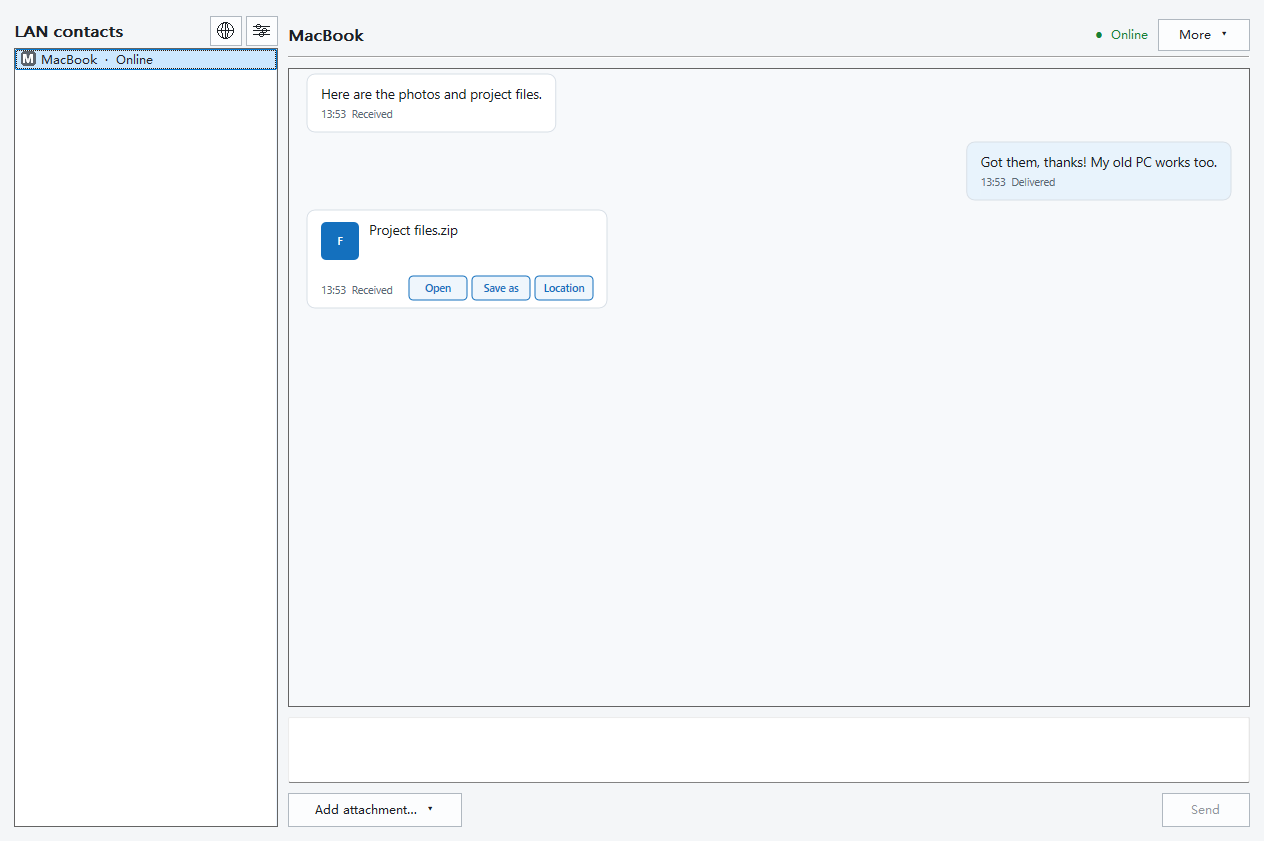

5. Open the received files
When the transfer says Completed, open the file on the receiving device. If it says Failed or the result is unconfirmed, check whether a complete copy arrived before sending again.
Completed files survive a disconnection, but unfinished transfers do not resume automatically. Clearing conversation or transfer history does not delete saved files.
Background reminders and transfers
If a known device is offline, versions with an outbox keep messages on the sending device and send them when both devices reconnect. You can cancel pending messages. Files still need the recipient’s acceptance; keep original attachments available until they are sent.
iPhone, iPad and Android phones with Google Play services can receive optional background reminders. Reminders need internet access and support on both clients. After tapping one, keep the sending app running and reconnect both devices to a reachable local network so queued messages can arrive.
Notifications contain no message text or filenames. Android devices without Google Play services currently have no cloud reminder channel, but can still transfer over LAN in the foreground. Mac can receive with its window closed while the app is running and the computer is awake; quitting or sleeping stops reception.