A folder of holiday photos is easier to sort on a computer. With LanSender, your phone and PC exchange the files over the local network; you do not need to email them to yourself.
Connect the phone and PC
Get LanSender for Android and LanSender for Windows. Connect both devices to the same router. The phone can use Wi-Fi while the PC uses Ethernet. A guest Wi-Fi network may prevent the two devices from seeing each other.
Open LanSender on both devices. Allow local network access if the system asks. Find the PC by its device name on the phone. If it is missing, follow device discovery help before selecting a large batch of photos.
Choose the photos on Android
Open the conversation with your PC and use the attachment control. Select the photos you want in the system picker, return to LanSender and send them. You can send several files together.
If a photo is stored only in a cloud photo service, first download it to the phone. LanSender needs access to the selected file; a thumbnail in another app is not necessarily a local copy. Grant access to the selected photos or files when asked.
Accept and save on Windows
In the PC conversation, accept the incoming files and choose the receiving folder. A dedicated folder, such as Pictures / Phone photos, makes the result easy to find later.
Keep LanSender visible on the phone and keep both devices awake until the transfer finishes. A background notification is an invitation to return to the app, not confirmation that the photos have already arrived.
Check the received photos
Open a few photos from the receiving folder and compare the file count with what you selected. LanSender transfers the files you selected; it does not automatically move or delete your phone's photo library. Keep the originals until you have checked the copy.
If the connection breaks, check which files finished before sending the missing ones again. An interrupted transfer does not resume automatically. For a full directory of files, see sending a whole folder.
Interface examples
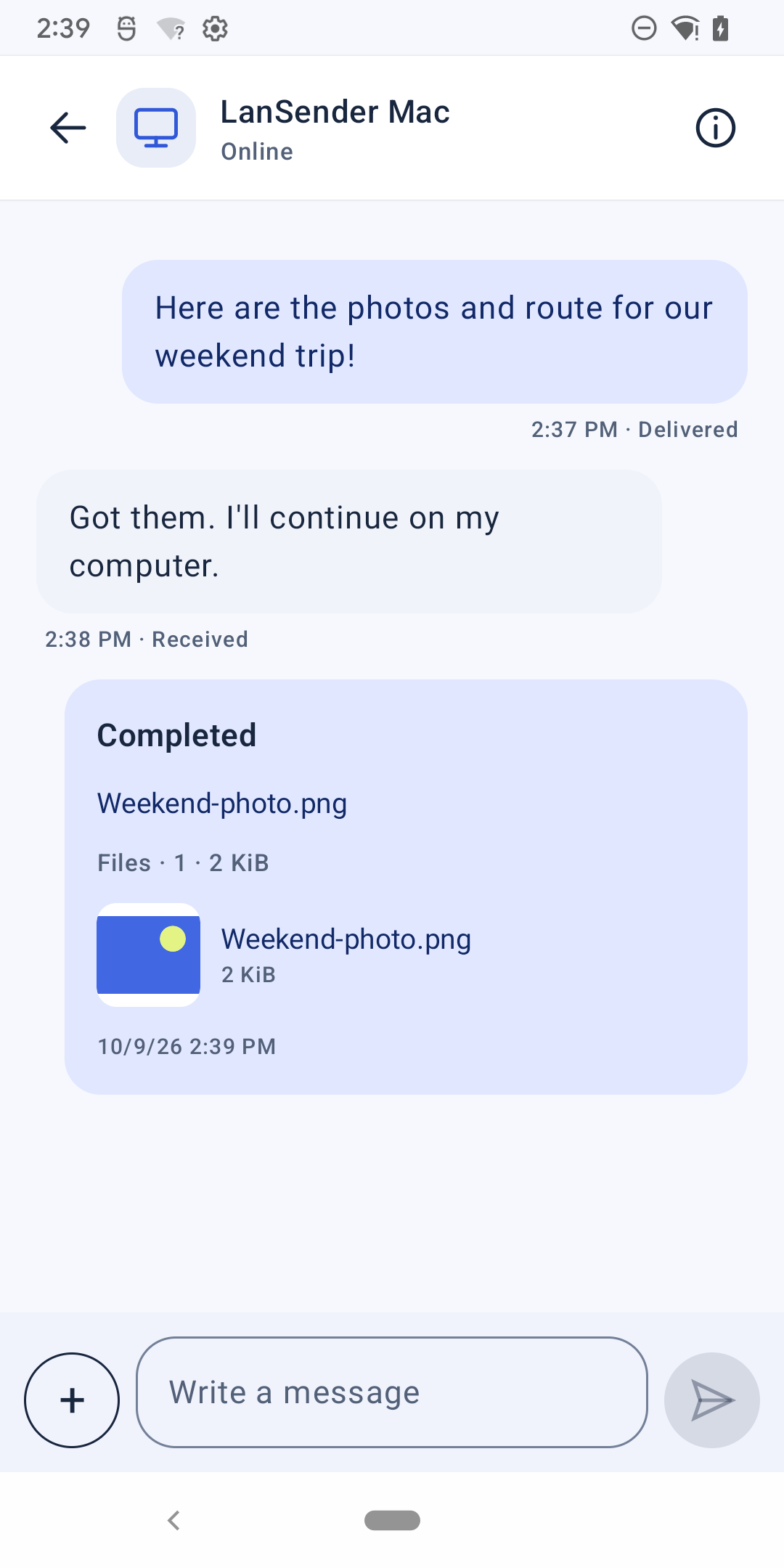
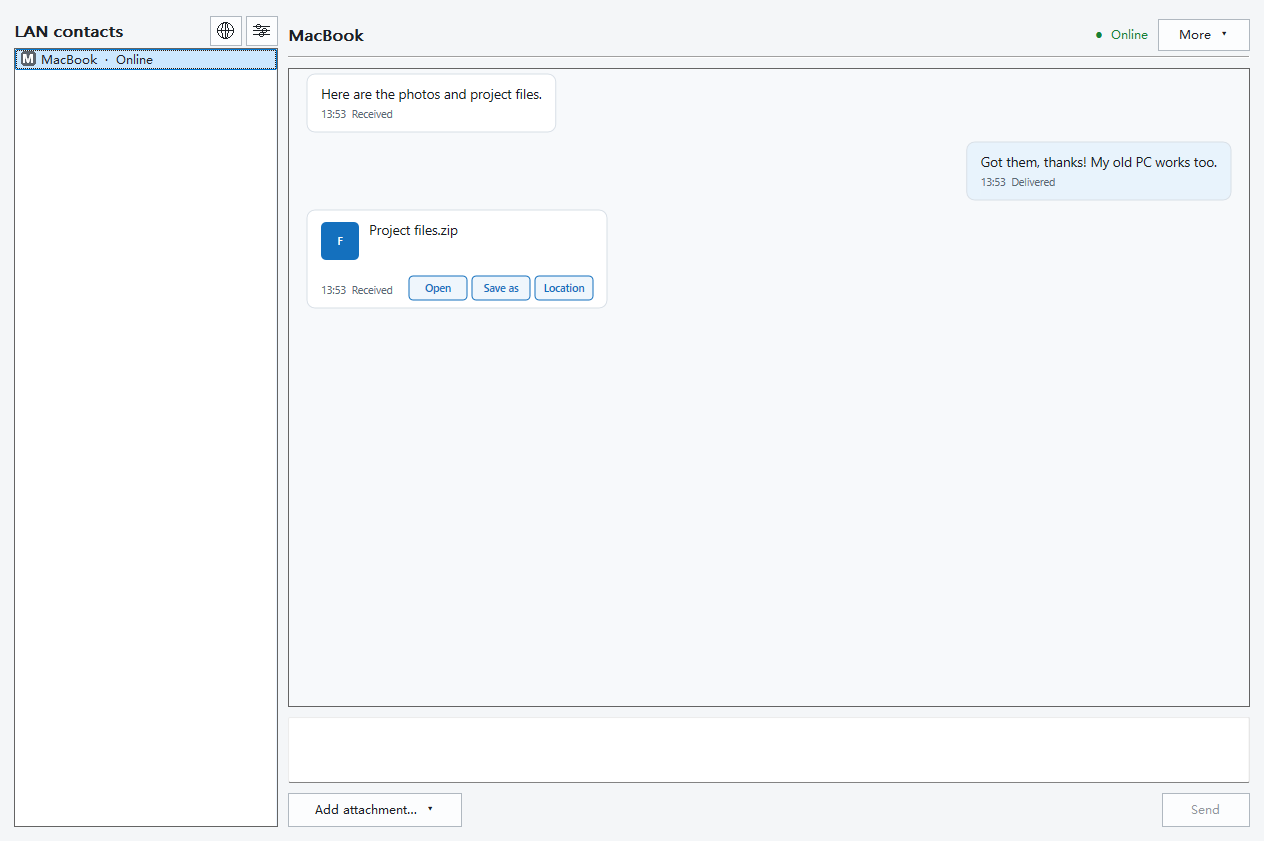
These examples show the Android and Windows interfaces. Expand either preview; its language and light or dark appearance follow this page. Device names and file names are examples, and may differ from your app.
See the app Android

See the app Windows

If you get stuck
A missing PC usually calls for checking the network, not selecting the photos again. A file-access error calls for checking the phone's permission and whether the photo is available locally. See the getting started guide or support for the corresponding steps.