A project can contain documents, images and several layers of subfolders. Send the folder with LanSender to keep that structure together instead of selecting every file individually.
Prepare a folder you can access
Put the files you want to share in one folder. Finish saving files that are open in other applications before sending them. Download cloud-only files locally first; the sender must be able to read the contents.
On a phone or tablet, the system file picker controls which folders an app may access. Another app's private data or a protected system folder may not be available. Export the files to an accessible folder when necessary.
Find the receiving device
Install the appropriate LanSender downloads on both devices, connect them to the same local network and open the apps. Wi-Fi and Ethernet can be used together if the router allows the devices to communicate.
Choose the recipient in the device list. If it does not appear, follow device discovery help. Confirm the device name before sending work or personal files.
Select the folder and send
Open the conversation and add a folder using the attachment control. Choose the folder itself in the system picker, return to the conversation and send it. LanSender sends the accessible files and subfolders inside it.
The recipient accepts the incoming request. On a computer, choose a destination with enough free space and permission to save files. A separate receiving folder makes an incoming project easier to distinguish from an existing copy.
Find and check the result
Keep the apps open and devices awake until the transfer finishes. On a computer, open the receiving folder and check its structure and important files. On iPhone or iPad, use the received library to inspect, share or export files; see finding received files on Apple devices.
If the connection is interrupted, check the saved files before resending. Unfinished transfers do not resume automatically. An offline message or notification does not mean that the attachment has finished transferring.
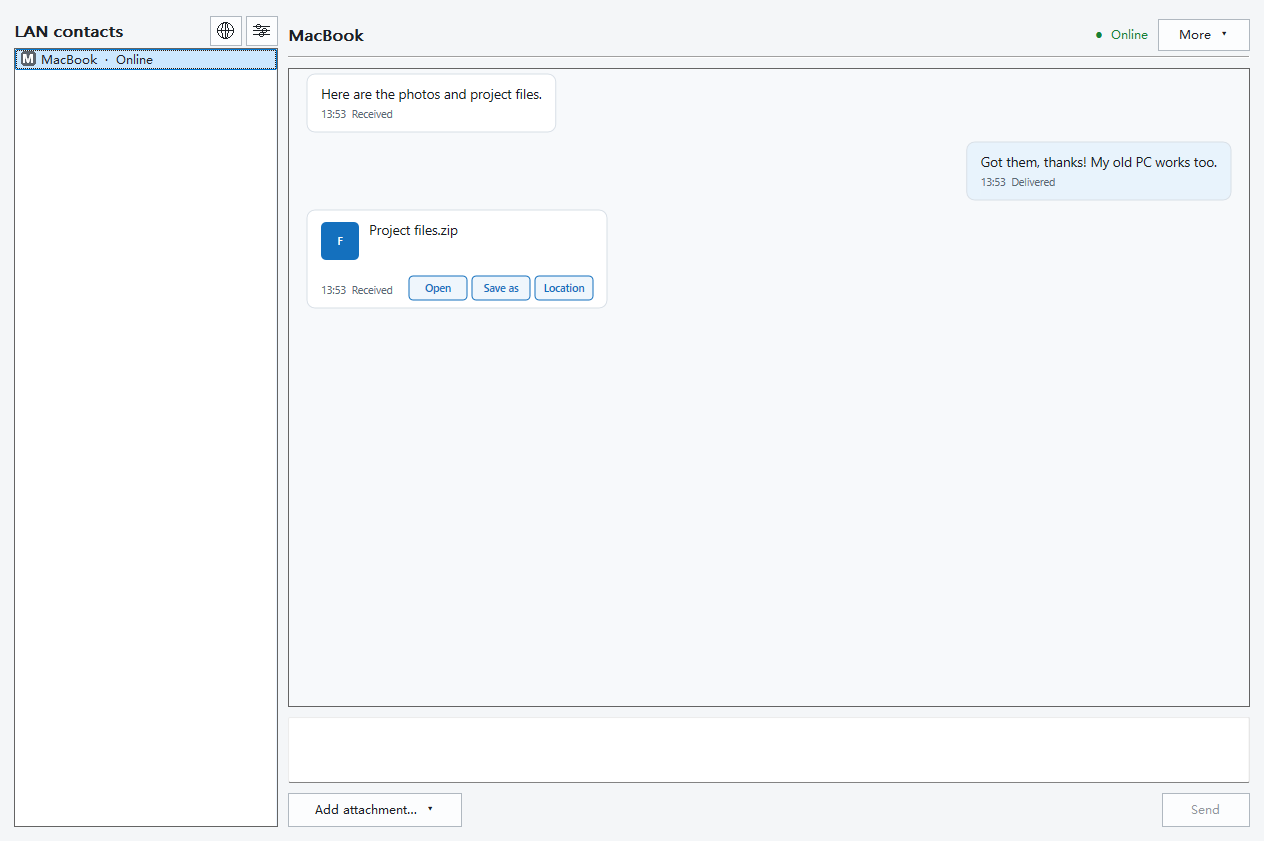
Interface example
Expand the Windows example to see a conversation and attachments. It follows the language and theme of this page. The system folder picker looks different on each platform.
See the app Windows

A copy, not continuous synchronisation
Sending a folder creates a transfer at that time. Later edits to the source are not automatically copied to the recipient, and deleting the source does not remove the received copy. LanSender is not a folder-mirroring or scheduled-backup service.
Keep the original until the recipient has checked the result. For a first transfer, use the short guide; for a specific error, see support.