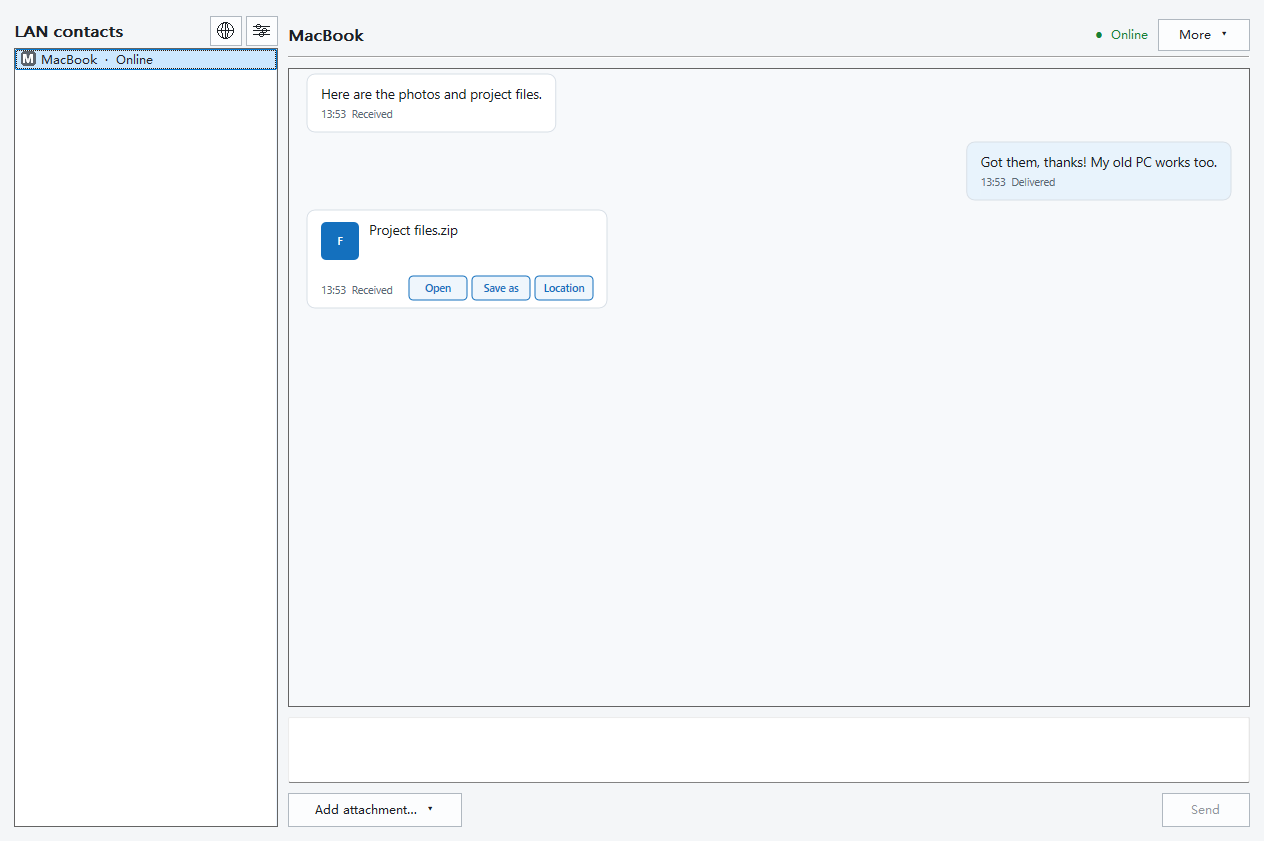
A document on your Mac, a folder on your Windows PC: send them directly between the two computers with LanSender. There is no need to email the files to yourself or upload them to a cloud drive.
Choose the app for each computer
Get LanSender for Mac and LanSender for Windows. The Mac download is a universal app for Intel and Apple silicon. On Windows, choose the Intel/AMD package for most PCs, ARM64 for an ARM PC, or the separate XP package for an XP computer. The download page lists the supported system versions.
Find the other computer
Open both apps and connect the computers to the same router. One may use Wi-Fi and the other Ethernet; they need to be able to communicate locally. Allow local network access when your system asks.
Select the other computer by its device name. If several names look alike, rename your device in LanSender settings before sending. If it is missing, use device discovery help; guest networks and firewall rules can prevent discovery.
Send a file or a folder
Open the conversation, add the files or choose a folder with the attachment control, then select Send. Use the same steps in either direction. A folder transfer includes its accessible subfolders; see sending a whole folder.
Save open documents first. Download cloud-only files locally before selecting them, and avoid moving or renaming source files while they are waiting to be sent.
Accept and find the files
On the receiving computer, accept the request and choose a folder you can write to. A folder such as “Received from Mac” makes the copy easy to find. Keep both computers awake until the transfer finishes.
Open the destination in Finder or File Explorer and check the files before removing the originals. Sending a folder copies its contents at that moment; later changes are not synchronized. A Windows program does not become a Mac app just because you transferred it.
If a transfer is waiting or interrupted
A queued request has not yet delivered its files. Bring both computers back online on the local network and check the conversation. If an active transfer was interrupted, inspect the received copy before resending; partial transfers do not automatically resume.
Interface examples
The interface examples below follow this page’s language and theme. For an error or a missing destination, see support and finding received files on Mac.
See the app Windows