Move selected photos to your PC, or take a document from Windows onto your iPhone. LanSender transfers the selected files over the local network, without using a cloud drive as the transfer destination.
Check iPhone availability first. If the iPhone download is not yet open, wait for availability there. If you already have the TestFlight app installed, you can follow the same steps below. Get the matching Windows version for your PC.
Connect the iPhone and PC
Connect both devices to the same router and open LanSender on both. The PC may use Ethernet. Allow LanSender local network access on iPhone when prompted, then select the PC by its device name.
If the PC does not appear, follow device discovery help. A guest Wi-Fi network may isolate devices even when they share the same network name.
Send photos or files from iPhone
In the conversation, open the attachment menu. Choose photos from the system photo picker or documents from the Files picker. Select the items, return to the conversation and tap Send.
For a photo or document stored only in iCloud or another cloud service, download it to the phone first. LanSender must be able to read the actual file. On Windows, accept the request and choose a receiving folder. Open that folder in File Explorer after completion.
Send files from Windows to iPhone
In the PC conversation, add the files and send. On iPhone, accept the incoming request. Completed files are kept in LanSender’s local received library.
Open the Transfers tab and find Received files. Preview supported files, then use Share or Export to save to Files or pass them to another app. A received photo does not automatically appear in Photos. See the Apple received-files guide for details.
Keep the phone in LanSender while transferring
Keep LanSender on screen and both devices awake until completion. Switching apps or locking iPhone can interrupt an active transfer. A notification means there may be a message or file request waiting; it is not proof that the file has arrived.
After an interruption, return to LanSender, check the received files and resend missing items if needed. An unfinished transfer does not resume automatically.
Keep or remove the copies
Check the received files before deleting originals. Clearing transfer history only tidies the list; it does not delete received files. Files you exported to another app are separate copies.
Interface examples
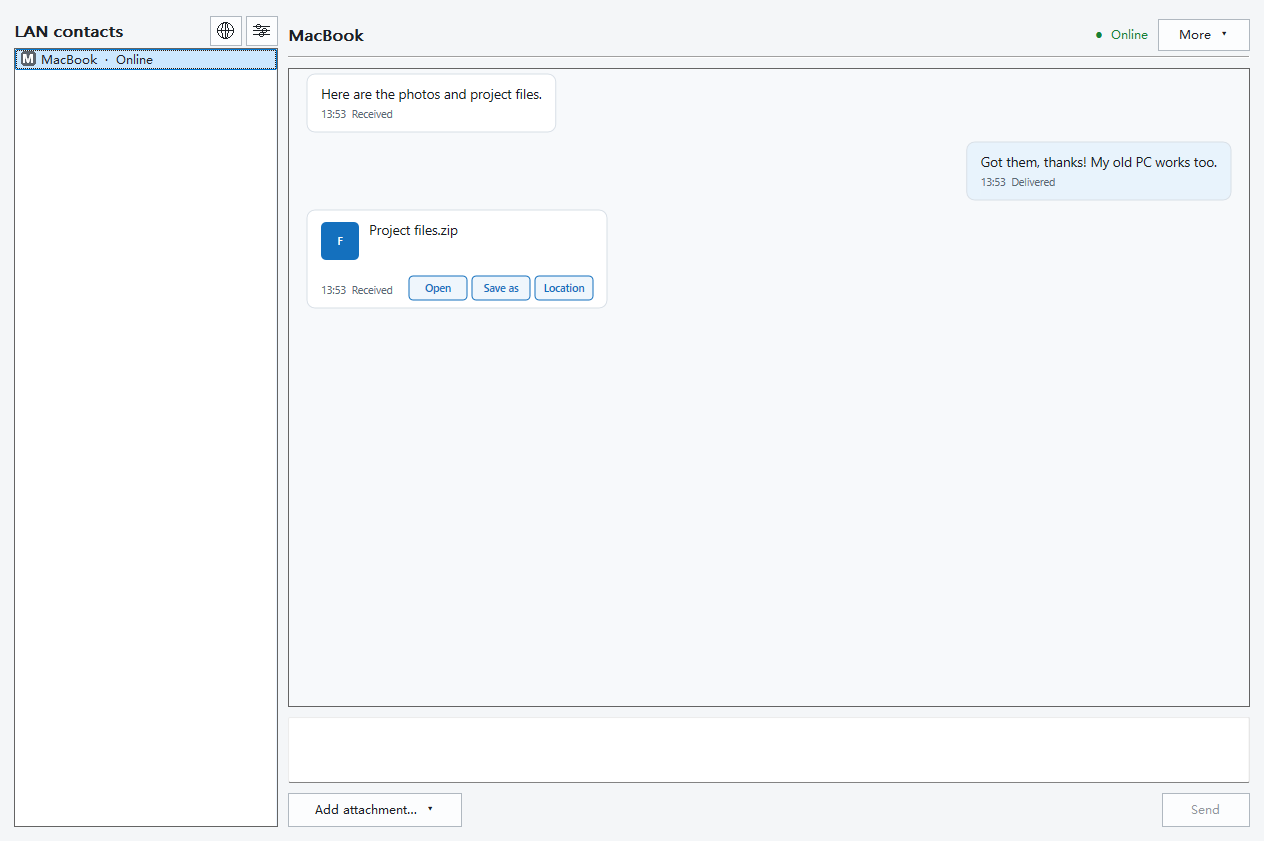
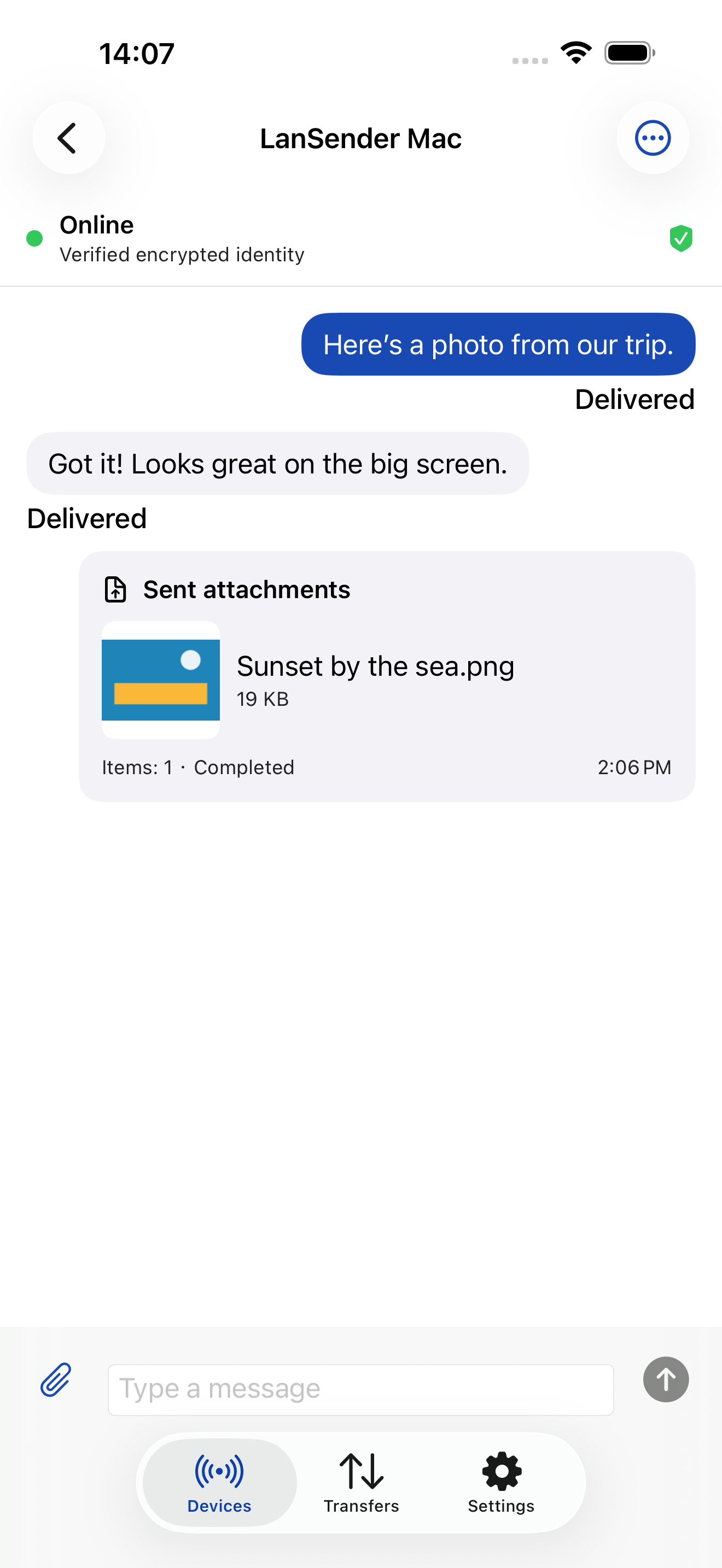
The examples below follow this page’s language and theme. For file-access errors, see support; for directories rather than individual documents, see sending a whole folder.
See the app iPhone

See the app Windows