

Why should you create an account just to send one photo, document, or video?
For nearby devices, you can often share files directly over Wi-Fi or Ethernet. LanSender is designed for file sharing without signup between supported Windows, macOS, Linux, and Android devices. You can find a nearby device, open a conversation, attach a file or folder, and send it without creating an online account.
Quick Answer
If you are looking for a free file transfer app with no account, use LanSender for nearby local transfers:
- Install LanSender on both devices.
- Connect the devices to the same reachable local network.
- Open LanSender and select the receiving device.
- Open the conversation.
- Attach a file or supported folder.
- Send the transfer and accept it on the receiving device.
An active internet connection is not required for the local transfer. Both devices must still be able to communicate on the same Wi-Fi, Ethernet, or supported local network.
Why Do Some File Transfer Services Require an Account?
Accounts make sense when a service provides cloud storage, remote access, permanent download links, synchronization, contact lists, or long-term transfer history.
Those features help when the sender and recipient are in different locations. They add unnecessary steps when you only want to move a file between two nearby devices.
With an account-based service, a one-time transfer may require you to:
- Enter an email address
- Create and remember a password
- Confirm your email
- Upload the file to a third-party service
- Wait for the recipient to download it
Local file sharing removes most of that setup. The file moves between devices that are already connected to the same local network.
How LanSender Shares Files Without Signup
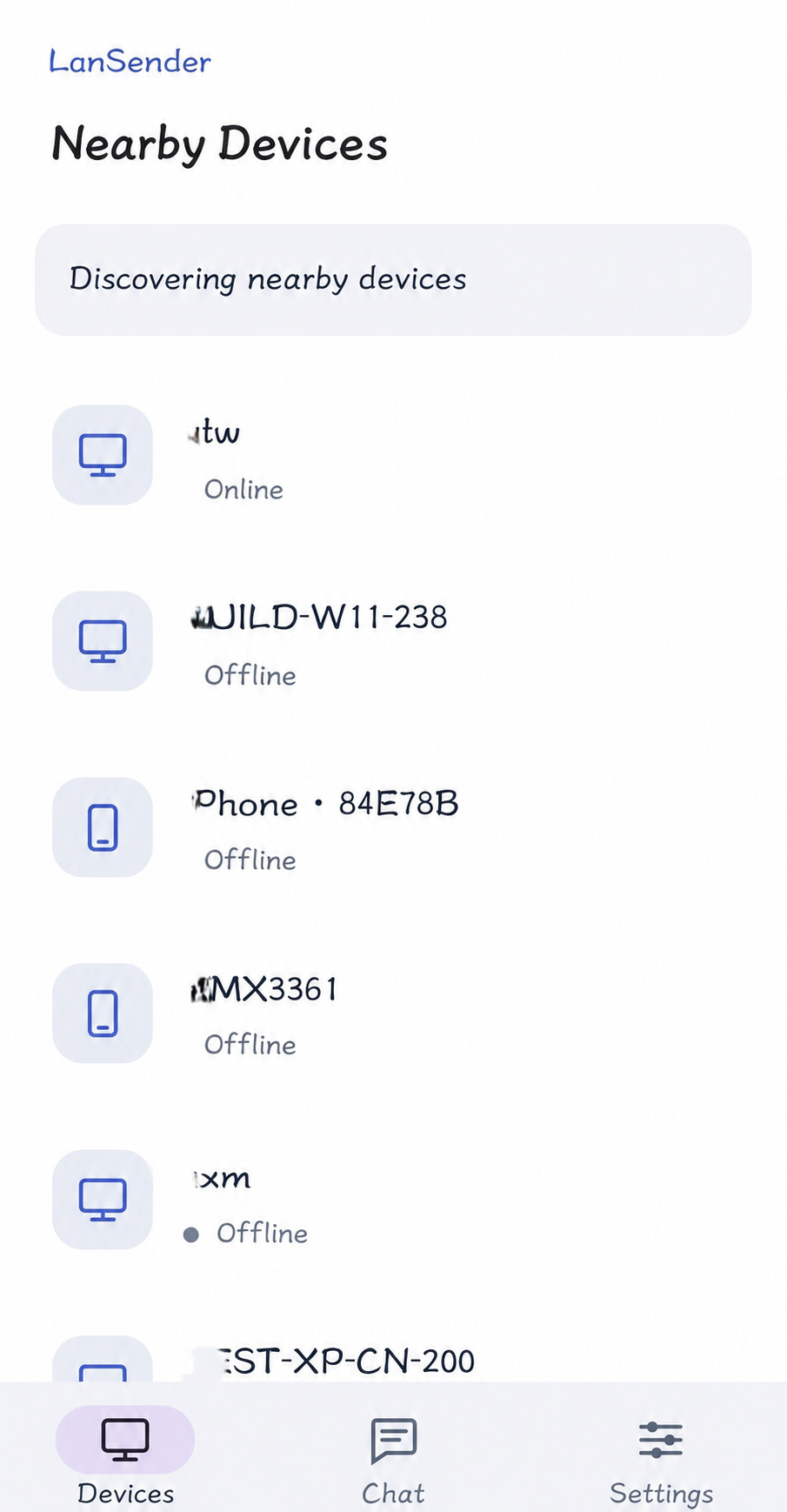
LanSender uses nearby-device discovery instead of an online contact list.
The standard local workflow is:
- LanSender runs on the sending device.
- LanSender runs on the receiving device.
- Both devices join the same reachable local network.
- Nearby devices appear in the device list.
- You select the intended recipient.
- Files are sent through the conversation.
The transfer depends on local connectivity, not an online account or cloud storage quota. LanSender also lets you send a file with a message, which is useful when the recipient needs to know which document version, photo set, or project folder you are sending.
File Sharing Without Signup: What Can You Send?
Depending on the platform and current release, LanSender can send:
- Photos and videos
- Documents
- ZIP archives
- Multiple files
- Complete folders on supported platforms
- Text messages with file attachments
Folder transfer is useful when you want to move a photo collection or project directory without selecting every file separately. See the whole-folder transfer guide for details.
Free File Transfer App No Account vs Cloud Transfer
Local and cloud-based tools solve different problems.
| Feature | LanSender local transfer | Cloud transfer service |
|---|---|---|
| Account required | No online account for the standard local workflow | Often required or recommended |
| Internet required | No, when the local network works | Usually yes |
| File path | Device to device | Device to server to recipient |
| Cloud storage quota | Not required for local transfer | May apply |
| Best for | Nearby devices | Remote sharing |
| Transfer context | Conversation and attachments | Link, email, or dashboard |
| Setup | Install and connect both devices | Upload and create a share link |
Use a cloud service when the recipient is in another location or cannot join the same local network. Use LanSender when both devices are nearby and you want a direct local transfer.
How to Send a File Without Creating an Account
1. Install LanSender on Both Devices
Install LanSender on the sending device and receiving device.
LanSender supports local transfer workflows across Windows, macOS, Linux, and Android. Check the LanSender download page for current platform information.
2. Connect Both Devices to the Same Network
Connect both devices to the same Wi-Fi or Ethernet network.
The devices do not need to use the same connection type. For example, the phone can use Wi-Fi while the computer uses Ethernet, as long as both devices can communicate locally.
A network without internet access may still work. Discovery can fail on guest Wi-Fi, public networks, separate VLANs, VPN connections, proxies, or firewalls that block local traffic.
If the receiving device does not appear, follow the device discovery guide.
3. Select the Receiving Device
Open LanSender and wait for the nearby-device list to load.
Check the device name before sending, especially if several computers or phones are connected to the same network.
4. Open the Conversation and Attach the File
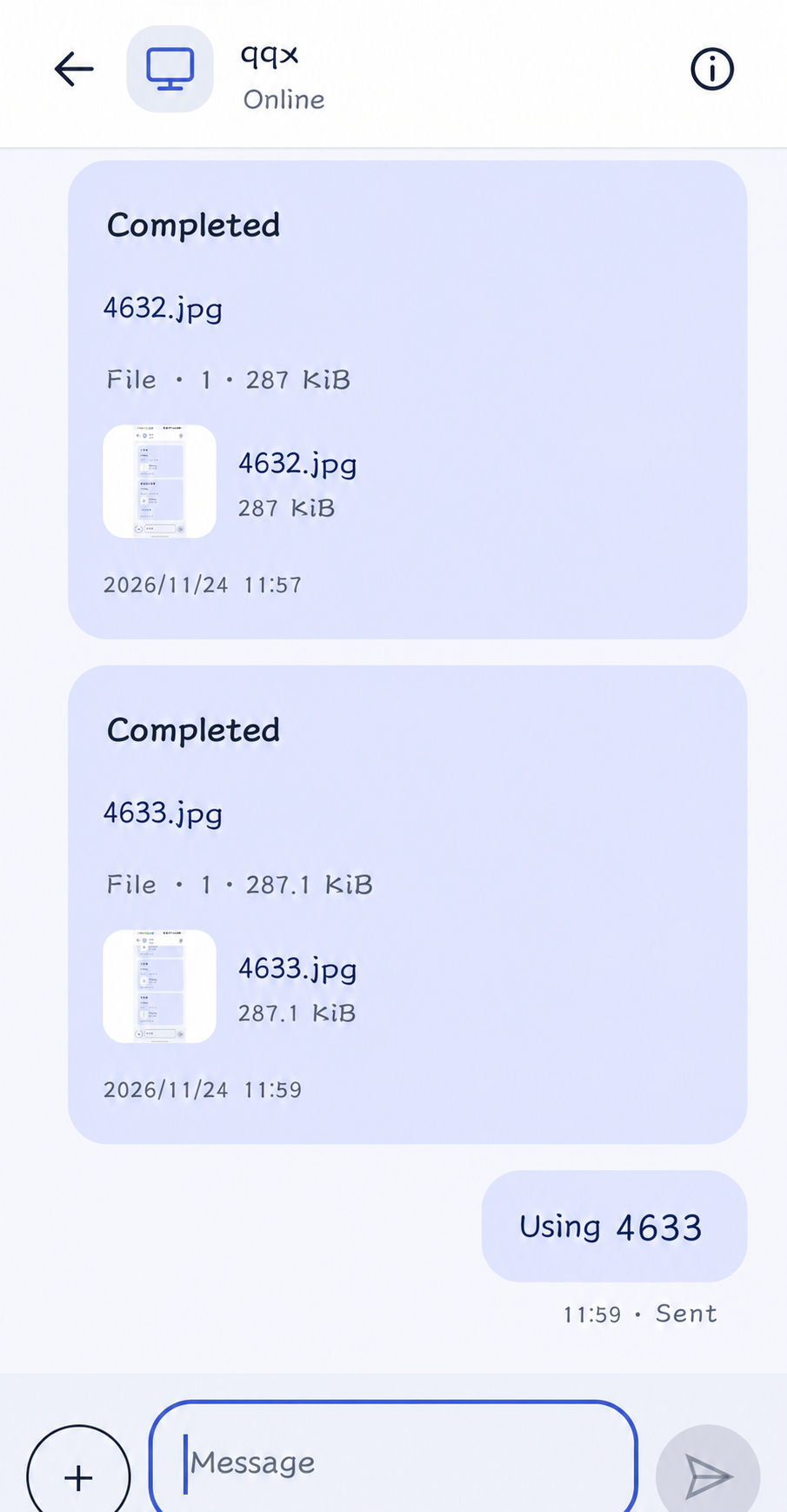
Select the receiving device to open the conversation. Use the attachment control to choose one or more files, or select a supported folder.
You can add a short message when context matters, such as “Final version” or “Photos from Saturday.” This keeps the file and its note together instead of splitting the conversation between LanSender and another messaging app.
5. Send and Accept the Transfer
Send the selected content through the conversation. The receiving device can review and accept the incoming transfer.
Depending on the platform and transfer state, LanSender may show transfer progress and provide supported cancel or retry controls. Before accepting a large transfer, check available storage and make sure the destination can be written to.
6. Confirm the Received File
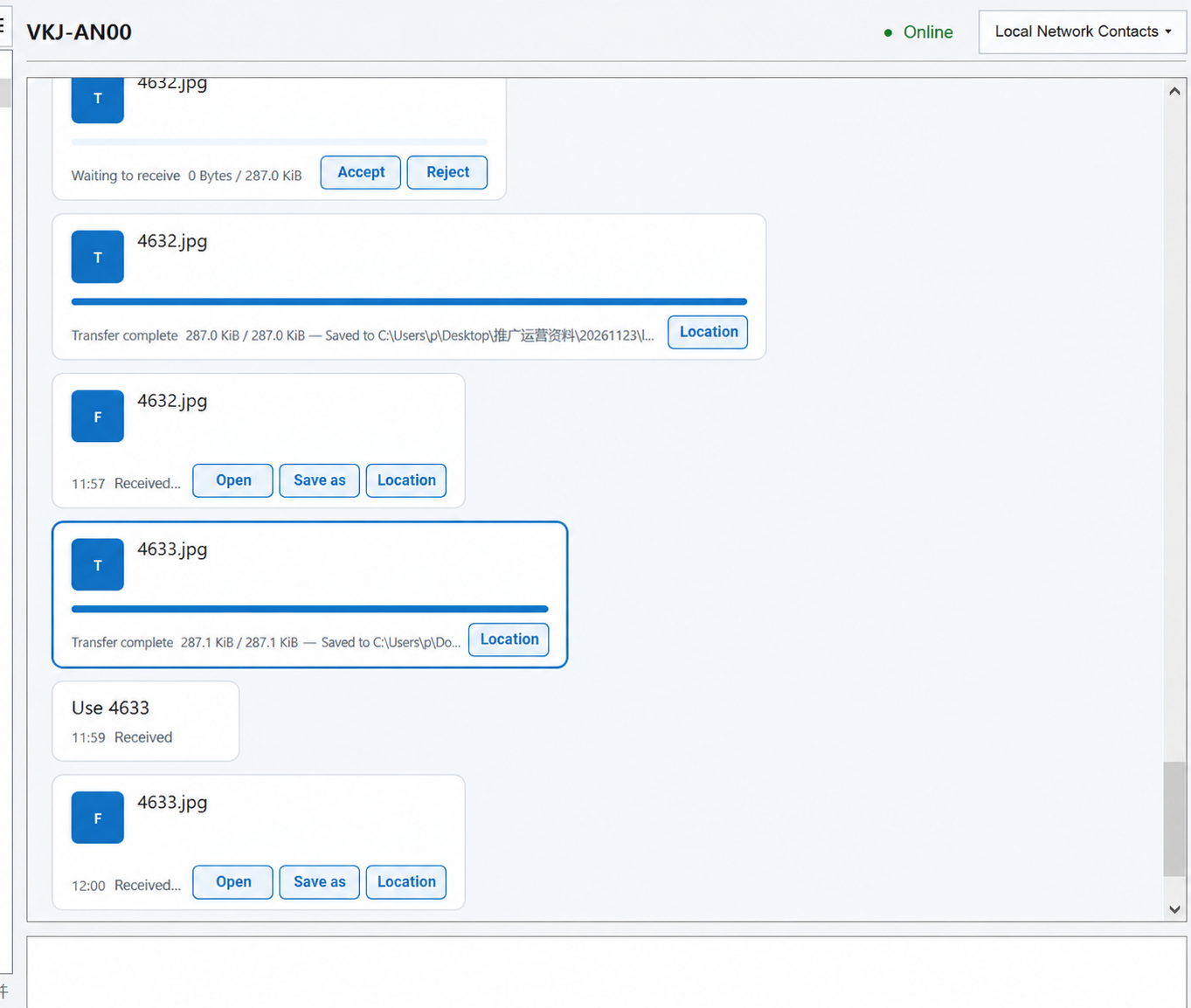
After the transfer finishes:
- Check the transfer status.
- Open the destination folder.
- Confirm the file name and size.
- Open an important document or photo.
- Keep the original until the copy has been verified.
Does No Account Mean No Security?
No. Account-free file sharing still requires sensible security practices.
Before sending a private file:
- Use a trusted home or office network.
- Confirm the receiving device name.
- Do not accept files from unknown devices.
- Keep the operating system and LanSender updated.
- Keep firewall protection enabled.
- Avoid unfamiliar public Wi-Fi networks.
Not requiring an account does not mean that every device on the network should be trusted.
Are Files Uploaded to the Cloud During Local Transfer?
For the standard local transfer workflow, LanSender is designed to send files directly between nearby devices over the local network. You do not need a cloud storage account to send a file locally.
This does not remove the need for a working network path. A VPN, firewall, guest network, or router isolation setting can prevent devices from discovering one another.
For a broader explanation, see Share Files Over Local Wi-Fi Across Devices with LanSender.
When Is an Account-Based Service Better?
A no-signup local transfer app is not the best option for every situation.
An account-based service may be more suitable when:
- The sender and recipient are in different locations.
- The recipient is not available at the same time.
- You need a permanent download link.
- You need remote backup.
- You want files synchronized across many devices.
- You need long-term online storage.
LanSender is intended for nearby device-to-device sharing. It is not a replacement for cloud storage or remote collaboration platforms.
Common Problems with No-Account File Sharing
The receiving device does not appear
Confirm that both devices are on the same local network. Then check VPN settings, router isolation, firewall permissions, and whether LanSender is running on both devices.
The transfer stops
Check available storage and keep both devices awake. Android battery restrictions may pause LanSender when it moves into the background.
The file was sent but cannot be found
Check that the transfer status shows completed. Then review the configured destination folder and search by file name.
Can I send a folder without an account?
Yes, on supported platforms and releases. Select the folder through the attachment control and verify the destination after the transfer.
Frequently Asked Questions
What is the best free file transfer app with no account?
For nearby devices, LanSender provides a local file transfer workflow without requiring an online account. It supports Windows, macOS, Linux, and Android workflows, with device discovery, file attachments, conversations, and folder transfer on supported platforms.
Can I share files without signing up?
Yes. Install LanSender on both devices, connect them to the same local network, select the receiving device, and send the file through the conversation.
Do I need internet access to share files without an account?
No, not for a local transfer. The devices still need a working Wi-Fi, Ethernet, or supported local network connection that allows device-to-device communication.
Are my files uploaded to the cloud during local transfer?
The standard LanSender local workflow is designed for direct device-to-device transfer rather than cloud storage. For sensitive files, use a trusted network and confirm the recipient before sending.
Can I send photos and folders without creating an account?
Yes. LanSender can send photos, documents, videos, multiple files, and supported folders between nearby devices.
Is a no-account file transfer app safe?
It can be safe when used on a trusted network and with the correct receiving device. Confirm the device name, avoid public Wi-Fi, keep the firewall enabled, and verify the received file.
Related Links
- Download LanSender
- Share Files Over Local Wi-Fi Across Devices
- Transfer Files from Android to PC
- Send a Whole Folder Between Devices
- Troubleshoot Device Discovery
- LanSender Support
Conclusion
You should not need to create an account just to send one file to a nearby device.
LanSender provides a file-sharing workflow without signup for local transfers between supported Windows, macOS, Linux, and Android devices. You can select a nearby device, open a conversation, send files or folders, and include a message when context matters.
If you need remote storage or sharing between different locations, a cloud service may be more suitable. If both devices are nearby, a free file transfer app with no account can be a simpler option.
Download LanSender to start sharing files locally.